

Quick Reference
Payments
Payment Stuck in “Pending”
Payments can get stuck in “Pending” status for several reasons. Work through these checks in order.1. Check TSS Service Health
The Transaction Submission Service (TSS) must be running and reachable.2. Verify Distribution Account Funds
The distribution account must hold enough of the asset being sent to cover the payment amount, plus enough XLM for transaction fees and the account’s base reserve. If your organization has more than one, check the account named in the payment’s Account column. Use Stellar Expert or the Stellar CLI to check the balance.3. Validate Channel Accounts
Channel accounts may become invalid after testnet resets. Look for errors like this in your logs:Example error: "Resource Missing"
Example error: "Resource Missing"
- Destination Account Missing
- Channel Accounts Missing
The receiver’s account hasn’t been created on the Stellar network. The account must be funded with the minimum balance (currently 1 XLM on mainnet) before it can receive payments.
Payment Failed with Operation Error
When a payment fails, the Status History shows a Horizon error with operation codes that explain why the transaction was rejected.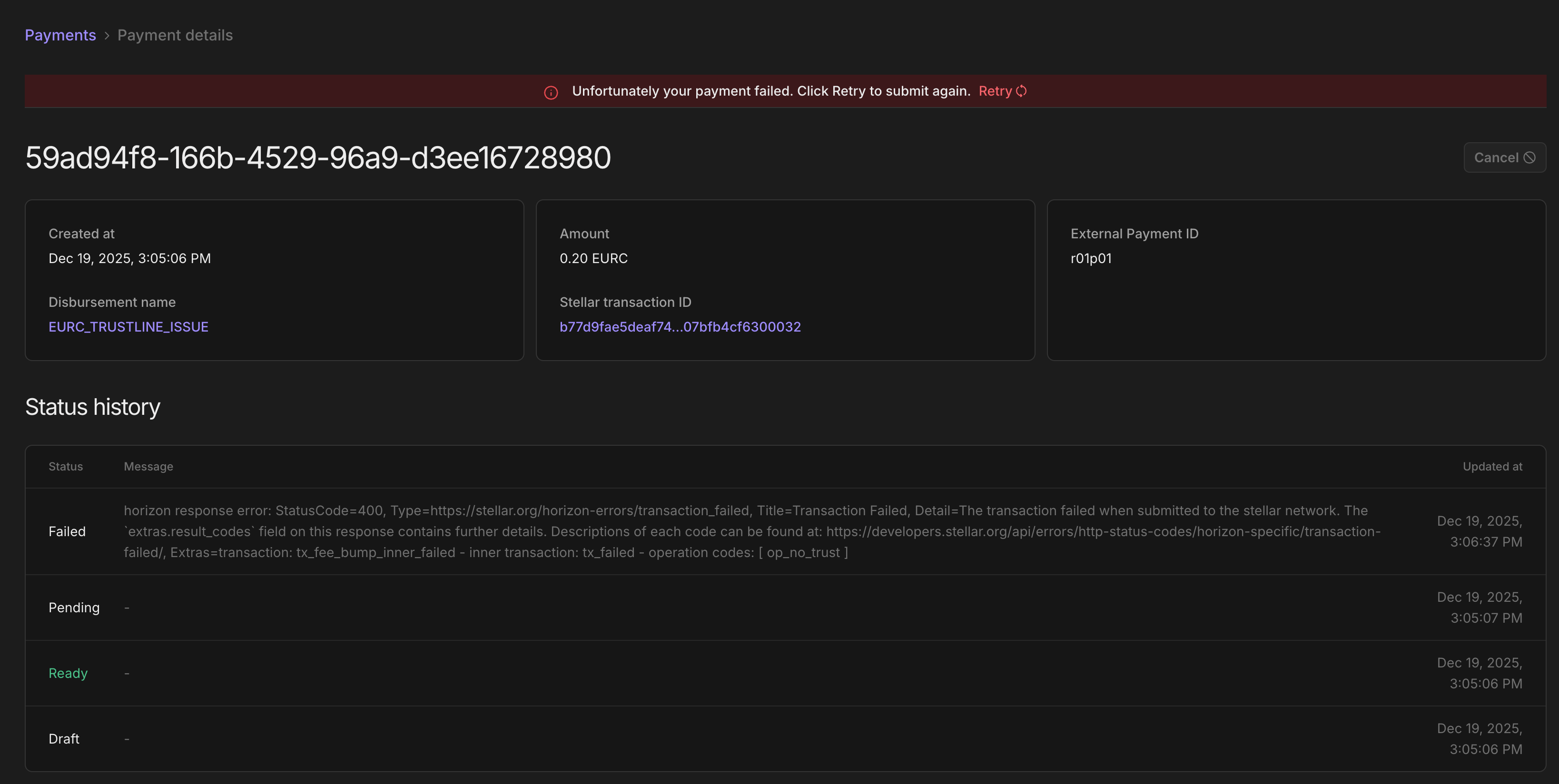
Reading the Error
Look for theoperation codes at the end of the error message:
op_no_trust) tells you exactly what went wrong.
Common Operation Codes
Trustlines explainedOn Stellar, accounts must explicitly “trust” an asset before receiving it. This is a security feature—it prevents spam tokens. The receiver needs to add a trustline for the specific asset (like EURC) using their wallet or a Stellar tool.Accounts added from the dashboard get their trustlines automatically. If that step fails and the account is active with no trustline for the asset, add it from the Trustlines panel on the Distribution Accounts page.
Example: op_no_trust
Full error message
Full error message
Slow Payments Due to Insufficient Channel Accounts
If payments are processing slower than expected, you may not have enough channel accounts. Channel accounts allow the SDP to submit multiple transactions in parallel. Without enough of them, transactions queue up and process sequentially.Symptoms
- Large disbursements take longer than expected to complete
- Payments sit in “Pending” status longer than usual before being submitted
1. Check Current Channel Account Count
View how many channel accounts are currently configured:2. Add More Channel Accounts
Use theensure command to increase the number of channel accounts. This command is idempotent—it only creates new accounts if you have fewer than the specified number:
3. Verify TSS Configuration
The TSS service also has a configuration for how many channel accounts it should utilize. Check that your--num-channel-accounts flag (or NUM_CHANNEL_ACCOUNTS environment variable) matches or is less than the number of accounts you created:
Receiver Communications
Issues with invitations, OTPs, and other messages sent to receivers.Receiver Not Receiving the Invitation
When you trigger a disbursement targeting an unregistered receiver (via email, SMS, or WhatsApp), they should receive an invitation link to register. If they haven’t received it, work through these checks.1. Verify Scheduler Configuration
The invitation job runs on a schedule controlled by an environment variable:
- Check SDP Logs for Submission Failures
The SDP logs will show whether the message was sent and if the messaging provider accepted or rejected it.
3. Verify Receiver Contact Info
Double-check that the receiver’s contact information (email, phone number) in the disbursement file is:- Correctly formatted (e.g., phone numbers include country code)
- Valid and reachable
- Not a duplicate that was already processed
Receiver Not Receiving OTP During Registration
During registration, receivers enter the contact details (phone number or email) that the payer used when submitting the disbursement. The SDP sends an OTP to verify ownership of that contact method.1. Check for Mismatched Contact Info (Most Common)
The most frequent cause is the receiver entering a different email or phone number than what the payer submitted—often without realizing it. How to verify: Check thereceiver_registration_attempts table, which logs attempts from contacts that couldn’t be matched to any receiver in the system.
- They entered something different from what’s on file
- You may need to coordinate with the receiver to confirm which contact info is correct
- If the payer made an error, you may need to update the receiver’s contact info or create a new disbursement
2. Check for Provider Issues
If the contact info matches but the OTP still isn’t arriving, the issue is likely with the messaging provider. See Check SDP Logs for Submission Failures above for common provider issues and how to diagnose them.Receiver Registration
Receiver Verification Locked Out
During SEP-24 registration, receivers must confirm their verification value (e.g., date of birth or PIN) to prove their identity. If a receiver enters the wrong value too many times, the system locks them out and displays:1. Identify the Locked Receiver
Query thereceiver_verifications table to find locked accounts:
- Confirm the Receiver’s Identity
Cross-reference the receiver ID to make sure you’re resetting the right account:
3. Reset the Verification Attempts
Once you’ve confirmed the correct receiver, reset their attempt counter:Channel Accounts
Recreating Channel Accounts
After a testnet reset, your channel accounts no longer exist on-chain but are still referenced in the database. You need to clean up invalid accounts and create new ones. Run these commands inside the TSS container:Still Stuck?
If you’ve worked through the relevant sections and the issue persists:- Collect logs from all relevant services (SDP, TSS, Anchor Platform)
- Note the exact error message and when it started occurring
- Check for recent changes to configuration, environment, or network (e.g., testnet reset)