Prerequisites
- Docker: Make sure you have Docker installed on your system. If not, you can download it from here and start it once installed.
- Git: You will need Git to clone the repository. You can download it from here.
- Go: Required to generate your environment file. Install from here.
- jq: Useful for optional scripts and diagnostics. You can download it from here
Clone the repository
Run the wizard
Log into the SDP
Open http://localhost:3000 and log in using the admin credentials generated by the setup wizard (organization: default).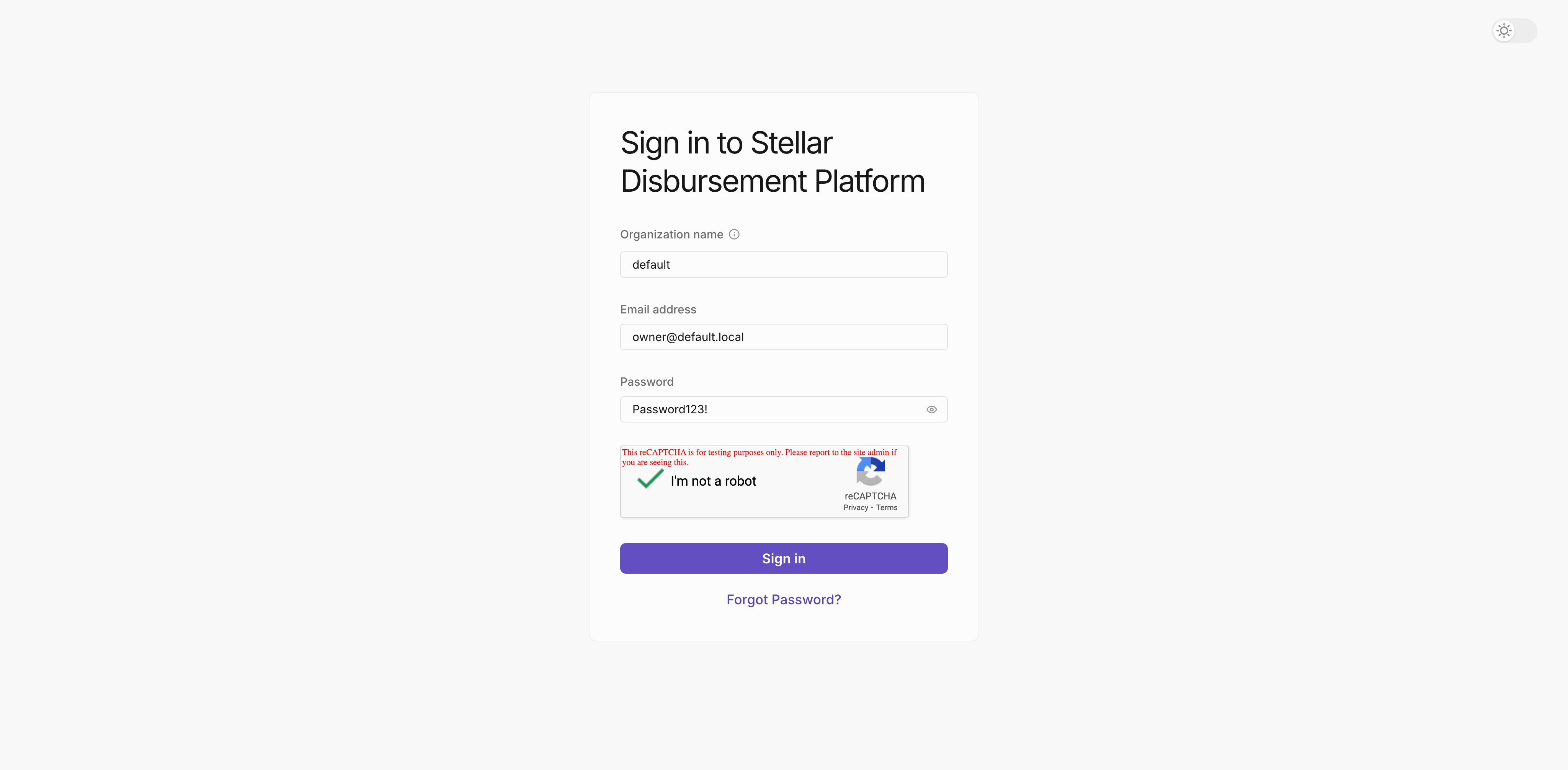
Send a test disbursement
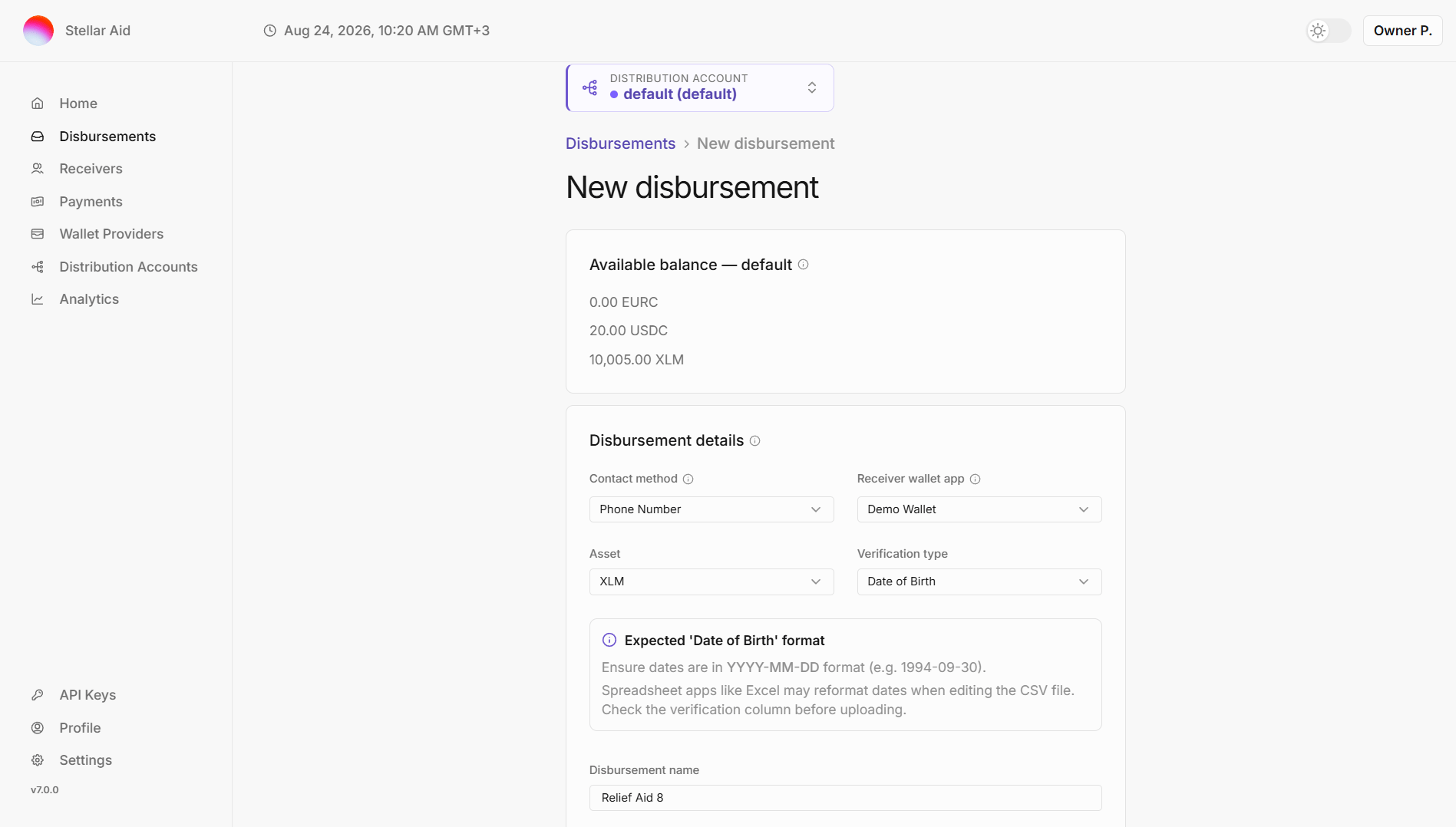
ClickNew Disbursement + on the dashboard; you’ll see a funded default distribution account ready to use:
- Choose phone number as the Registration Contact Type. This is the channel recipients will use to receive messages.
- Select XLM as the asset to disburse.
- Pick Demo Wallet as the recipient wallet.
- Choose Date of Birth as the verification method; recipients will enter it to confirm their identity.
- Give disbursement a name.
- Download the sample via
Download CSV Template; it includes all required columns. - Update the placeholder/invalid phone numbers before using it.
- The verification column holds the identity data recipients must match.
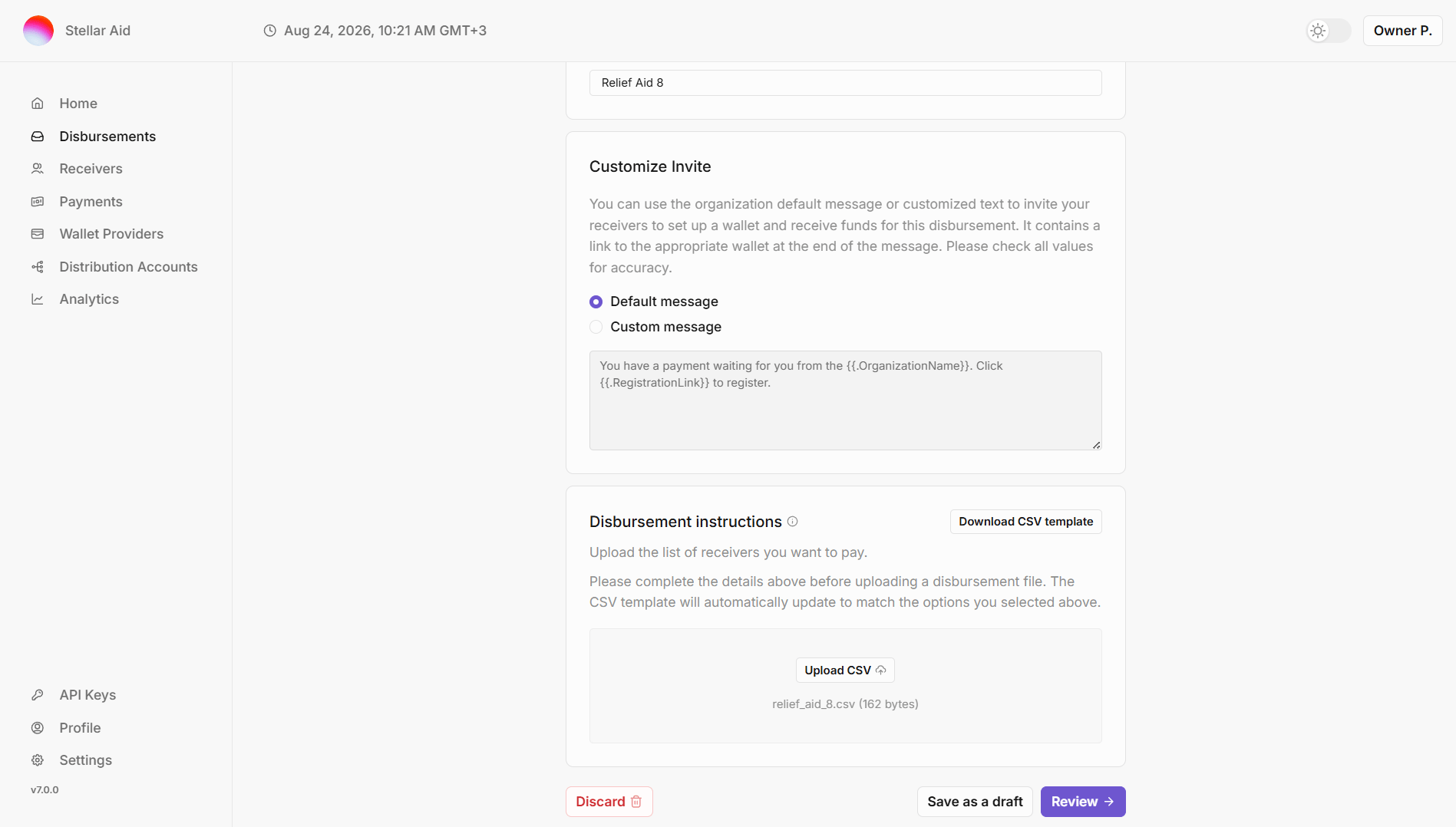
Ready status, meaning the receiver has yet to accept the invitation and payment. 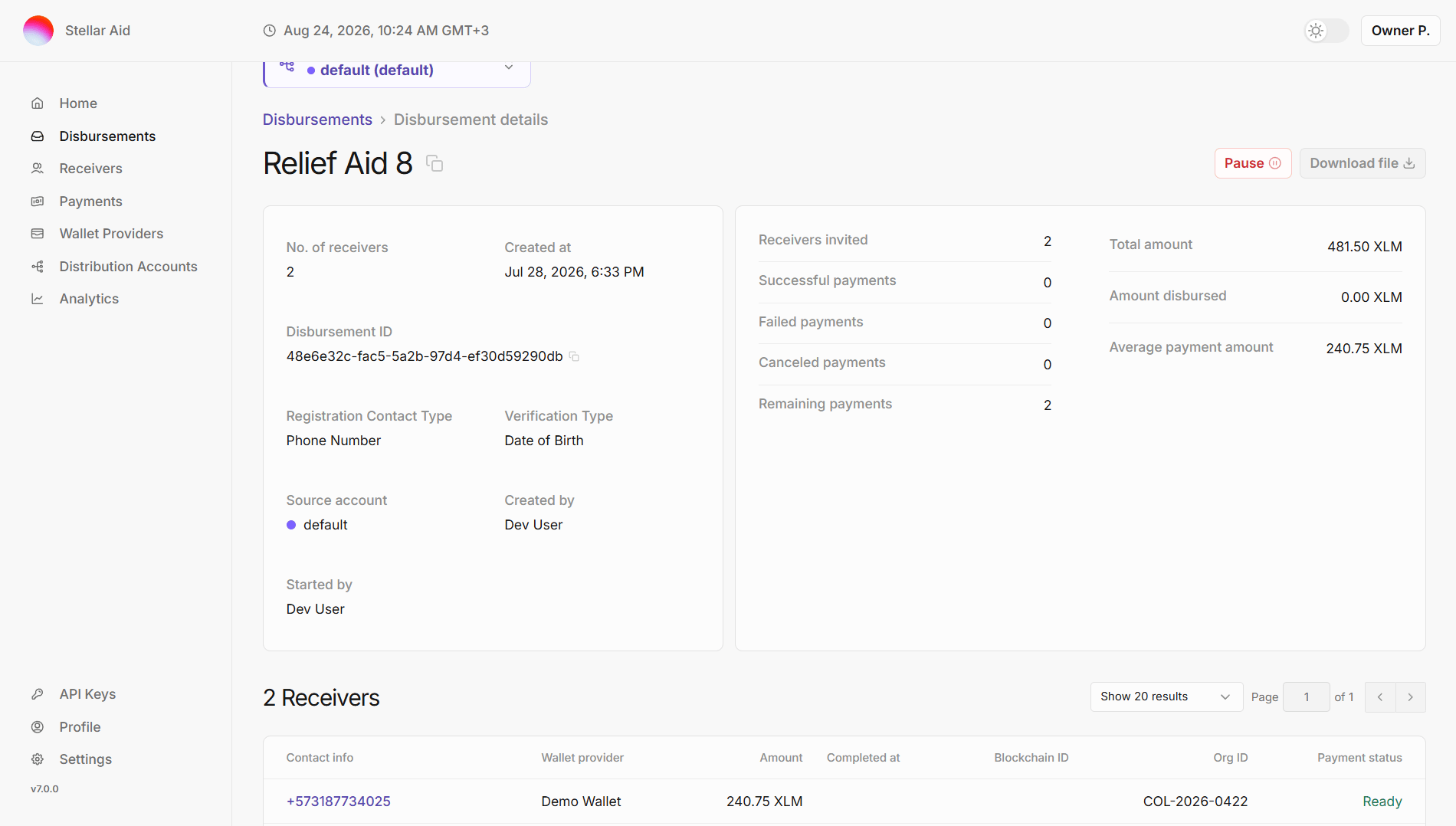
Receive Payment
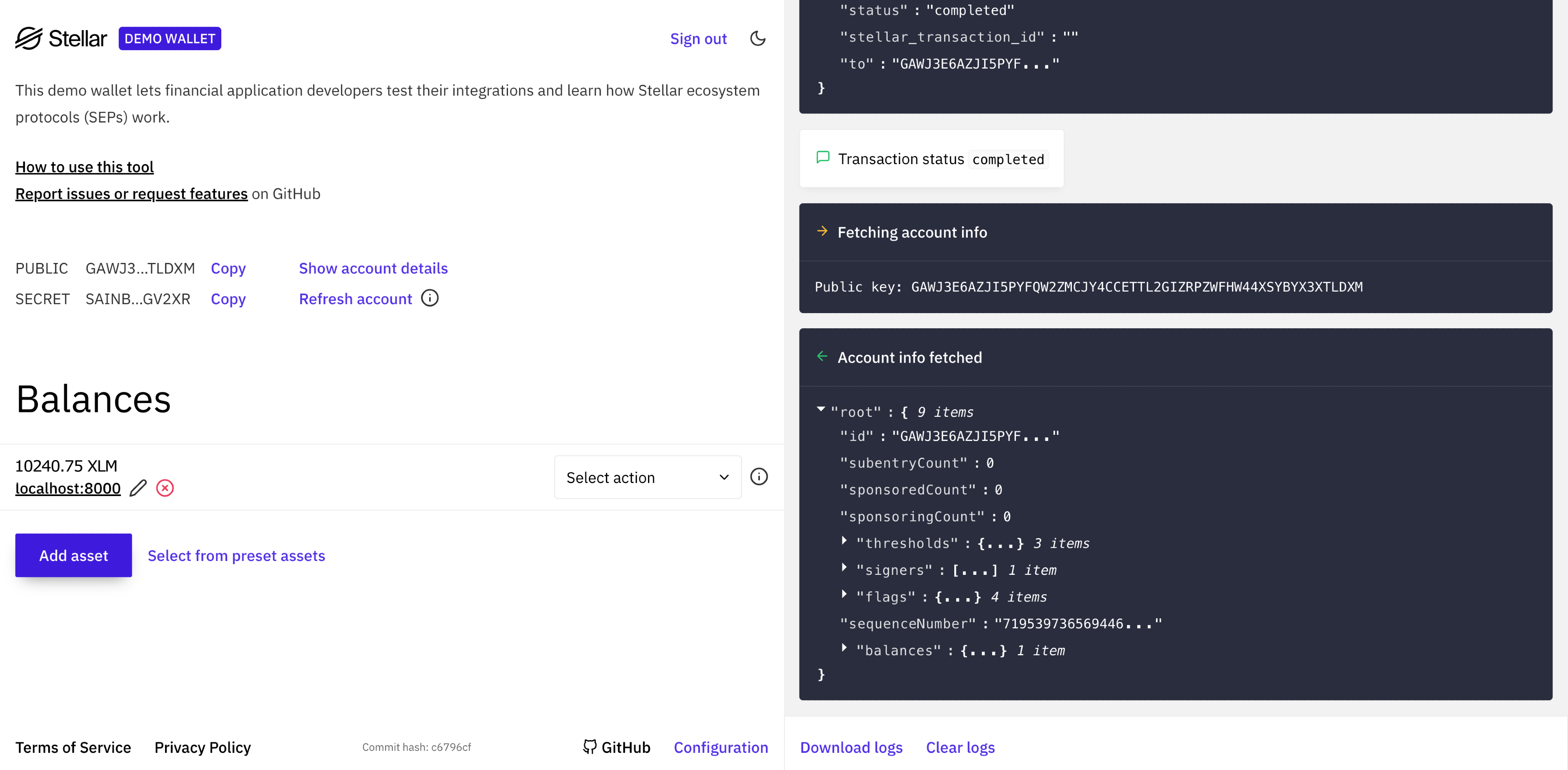
This section shows the Testnet-only Demo Wallet flow so you can observe the receiver experience while running SDP locally. For production or real wallet integrations, follow the guidance in Making Your Wallet SDP-Ready.
- Open the demo wallet: http://localhost:4000.
- Click
Generate Keypair for new accountto create a keypair; save the public and secret keys if you plan to reuse the account. - Click
Create accountto create the account on the Stellar testnet (the account starts with 10,000 XLM).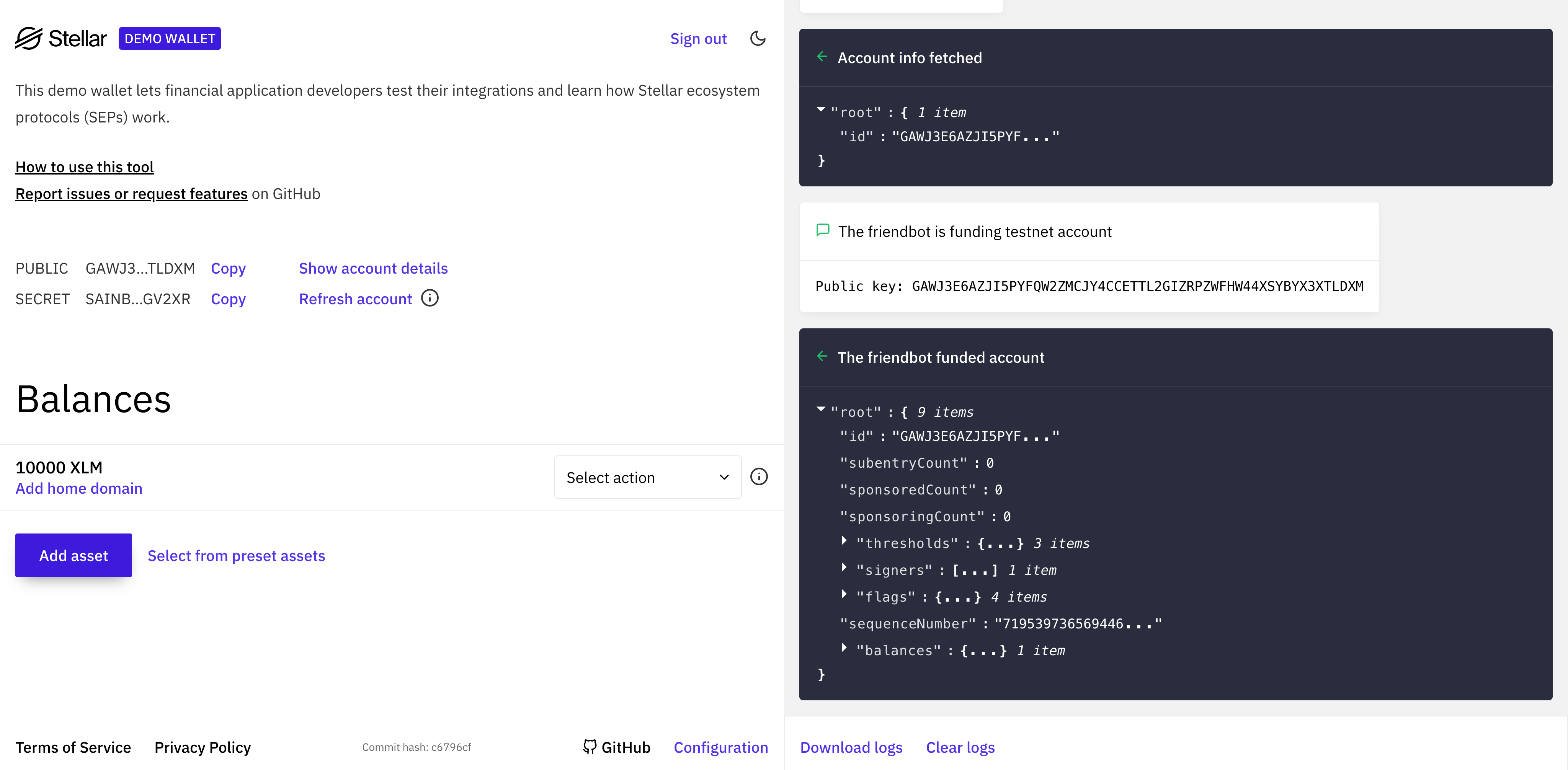
- Under Asset XLM, click
Add Home Domain, enterlocalhost:8000, and clickOverride. - In the
Select actiondropdown, chooseSEP-24 Deposit, then clickStart.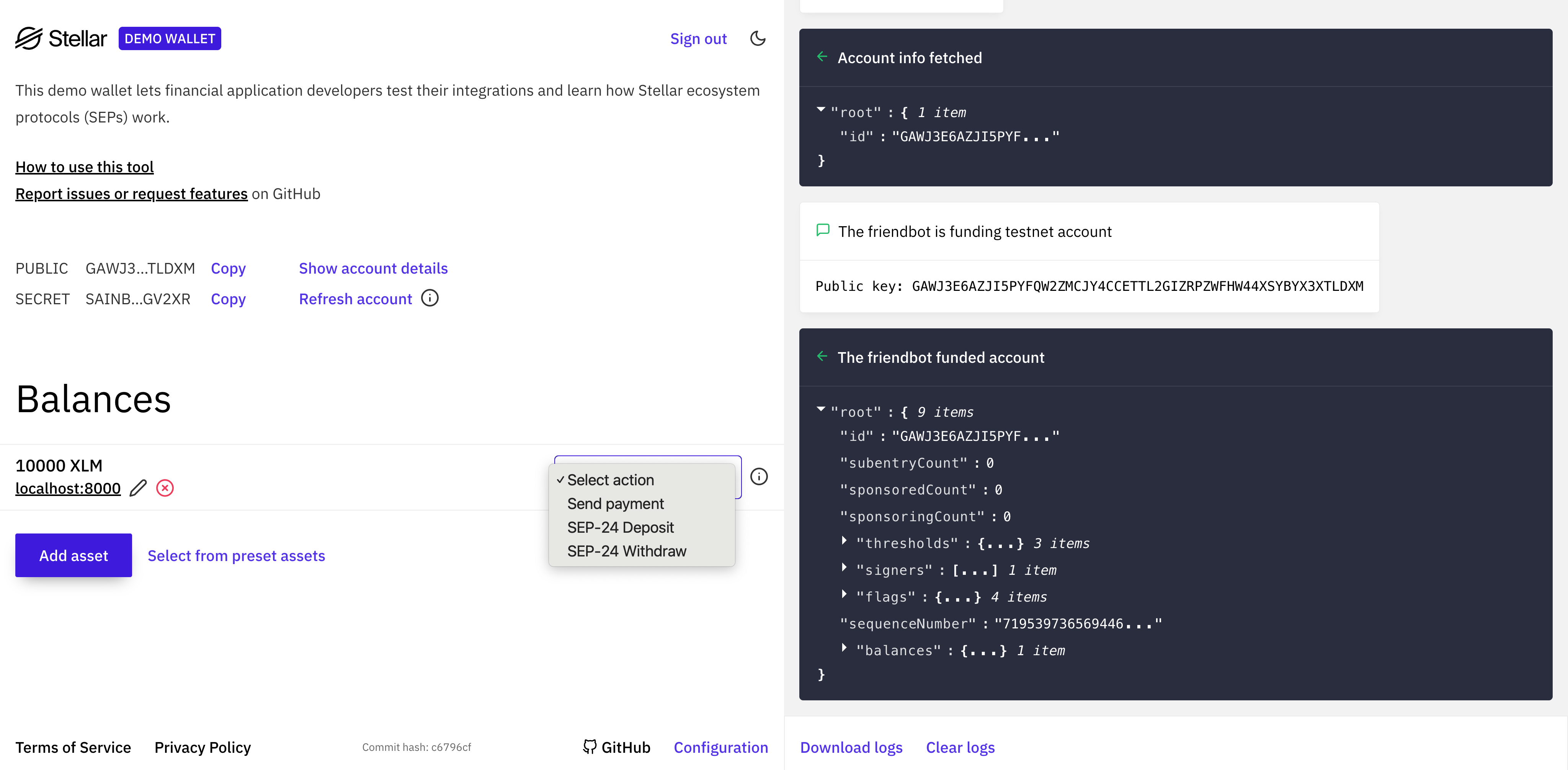
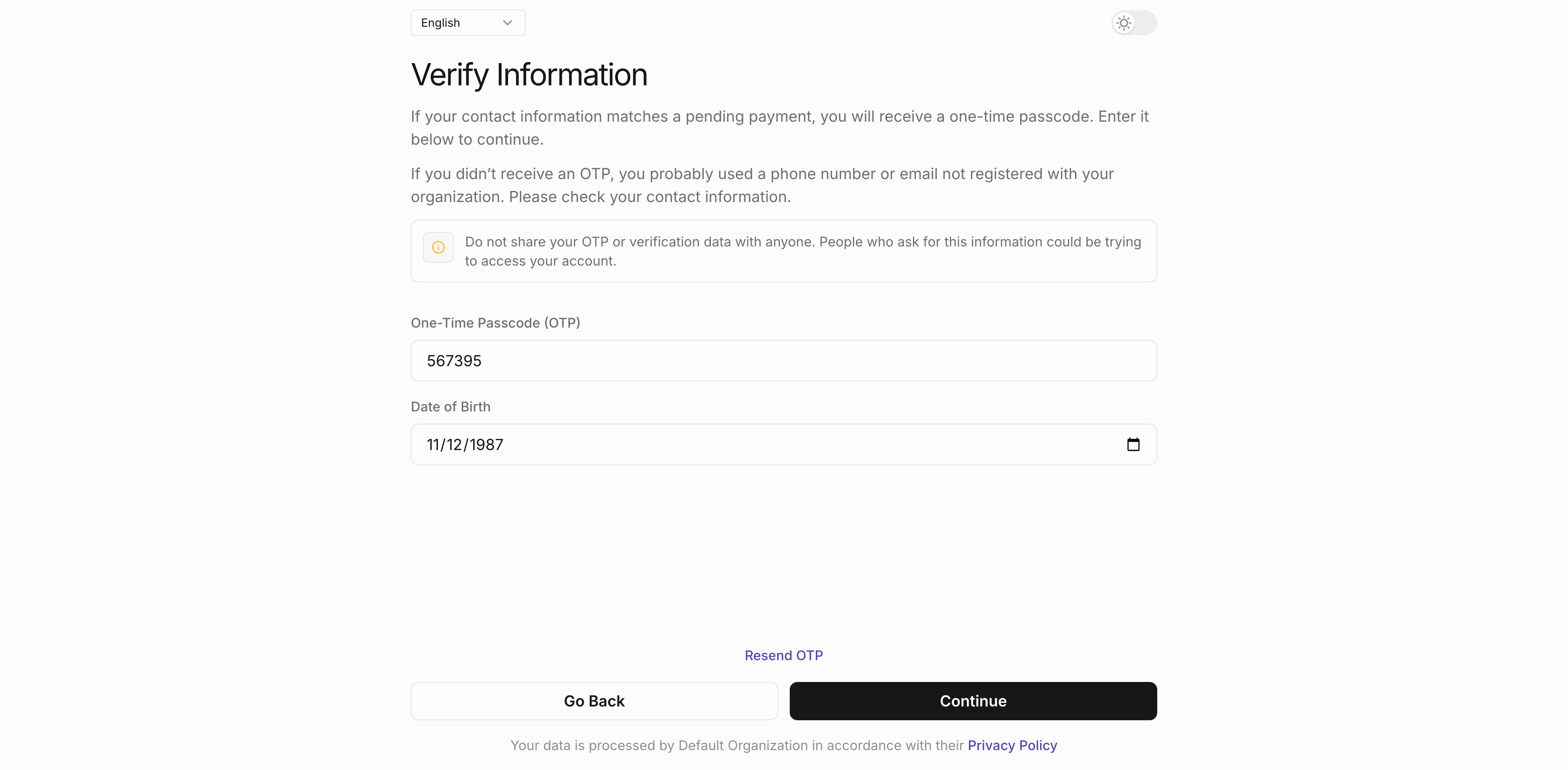
- When prompted, enter the same phone number used in the disbursement CSV.
- Complete the OTP and Date of Birth verification. The OTP appears in the
sdp-apicontainer logs (e.g., “Here is the 6-digit verification code you requested …”).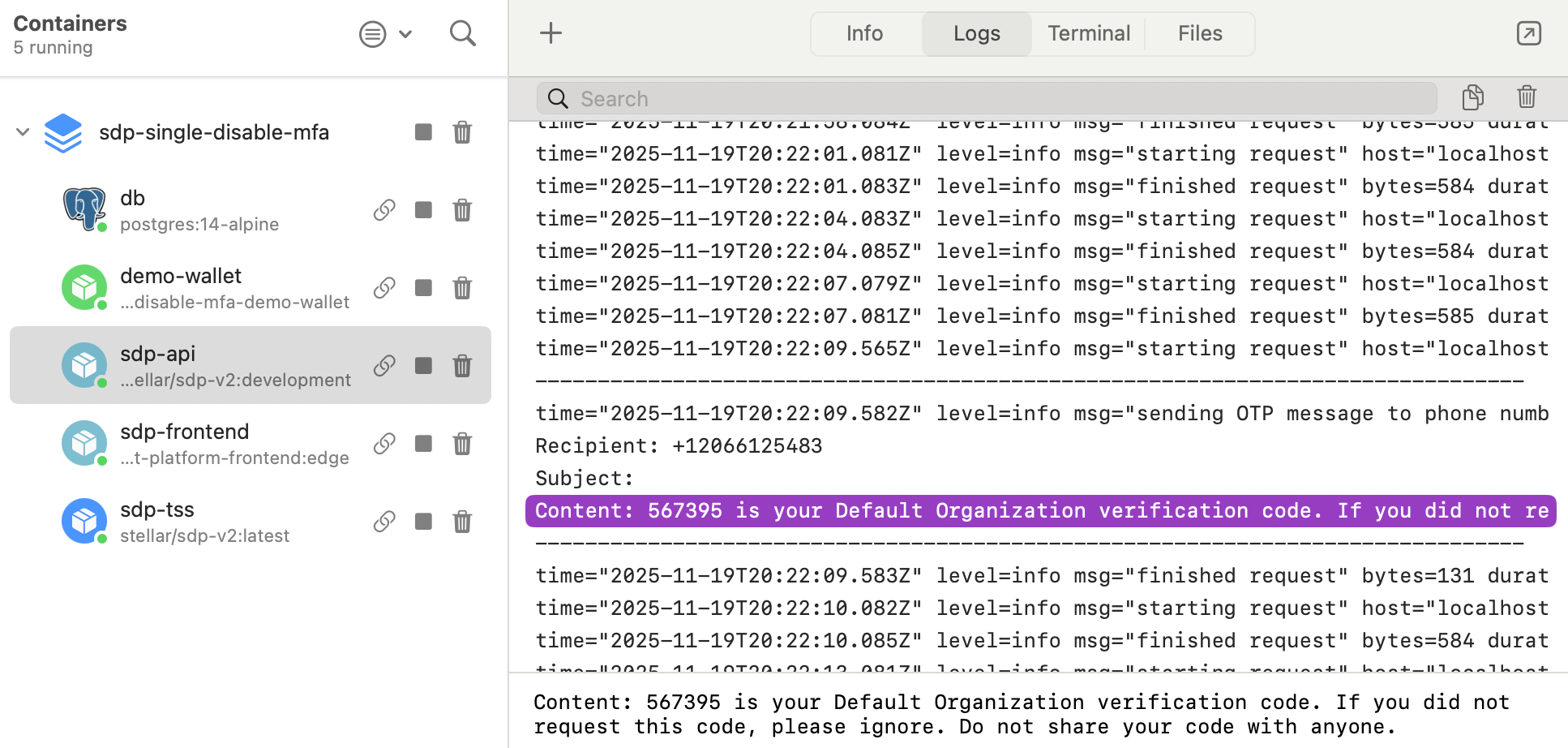
Monitoring
-
In the SDP dashboard, the payment moves from
ReadytoPENDINGduring the wallet flow, then toSuccesswhen funds are deposited.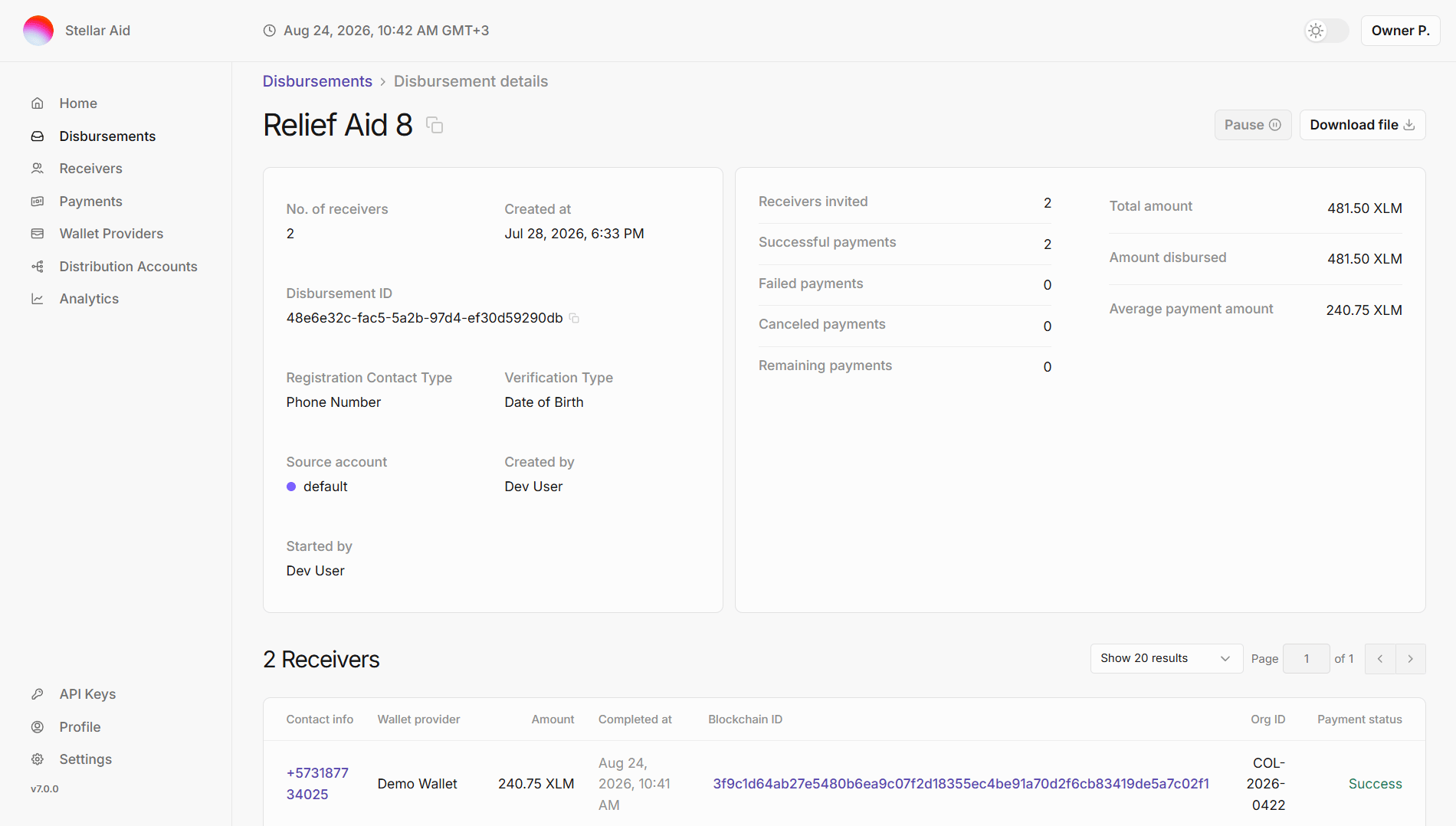
-
In the demo wallet, the balance updates to reflect the new amount.